
Finding the right feature is an essential part of working with spatial data. We have improved the built-in search in NextGIS Web maps to make results easier to browse and give you more control over where and how you search.
Watch our short video to see the changes in action:
Search results are now grouped by layer, so you can quickly focus on the category you need, for example, amenities, buildings, or roads.
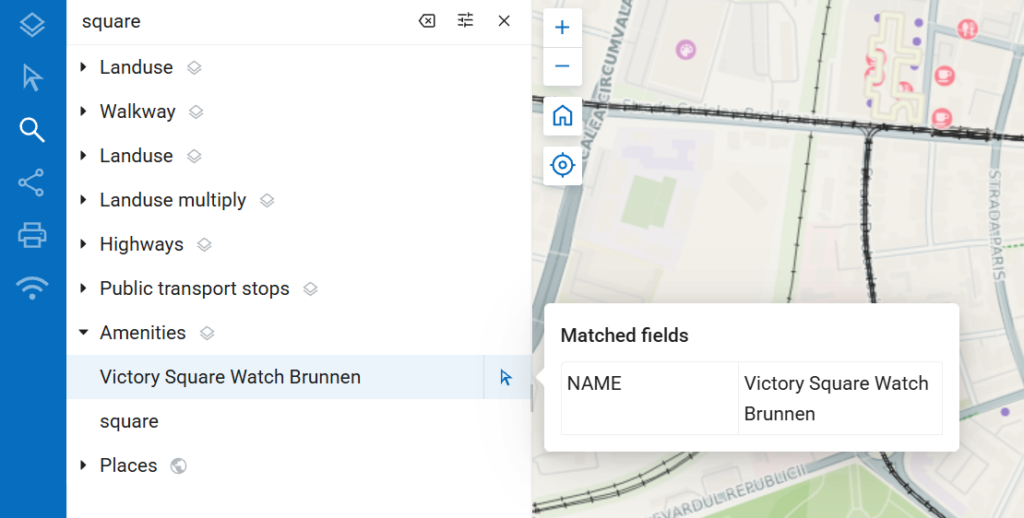
Hover over a result to see the attribute that matches your query. Click it to highlight the feature on the map, or use the identification icon to open its full details. When you return to the search panel, its previous state is preserved, letting you continue browsing without starting over.
The search settings let you choose between all layers, visible layers, or a specific layer. This is particularly useful in maps with many datasets: if you’re looking for a facility, you can limit the search to the relevant layer.
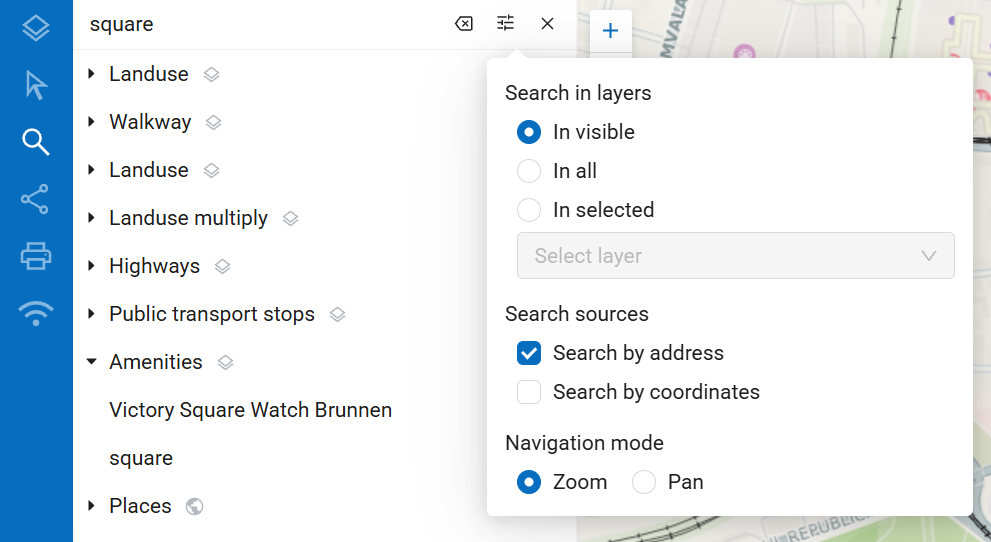
You can also enable or disable address and coordinate search, and choose whether selecting a result zooms to the feature or simply pans the map while preserving the current scale.
In each layer’s settings, you can choose which fields are searchable and select an attribute to use as the result label instead of a numeric identifier. A building name or facility code can make the right feature much easier to recognise.
These options help you adapt search to your data and the people using your maps. For more complex queries, advanced filters let you find features using expressions and combinations of conditions.
Learn more in the search documentation.


