
How filtering works on a web map and in an attribute table
Filters help you quickly find the features you need in large datasets, directly on the map or in the attribute table. In this article, we’ll look at how filters work in NextGIS Web and what kinds of tasks they can help with.
Imagine a map with points of interest: shops, cafés, landmarks, and other places. Hundreds or thousands of features in a single layer. Filters let you focus only on the features you need, without changing or deleting the rest of the data.
In NextGIS Web, filters can be applied in two main places.
You can apply a filter through the layer context menu. This filter affects both the map and the attribute table opened from the same layer menu: features are hidden on the map and excluded from the table view.
At the same time, the attribute table opened on the web map also has its own filter. This table filter works only inside the table and does not affect which features are displayed on the map.
You can also open the attribute table of any vector layer separately, outside the web map. The same filtering tools are available there as well.
Let’s start with a simple example. We have a Shops layer and set the following condition:
SHOP equals beauty
Now only beauty shops remain visible on the map.
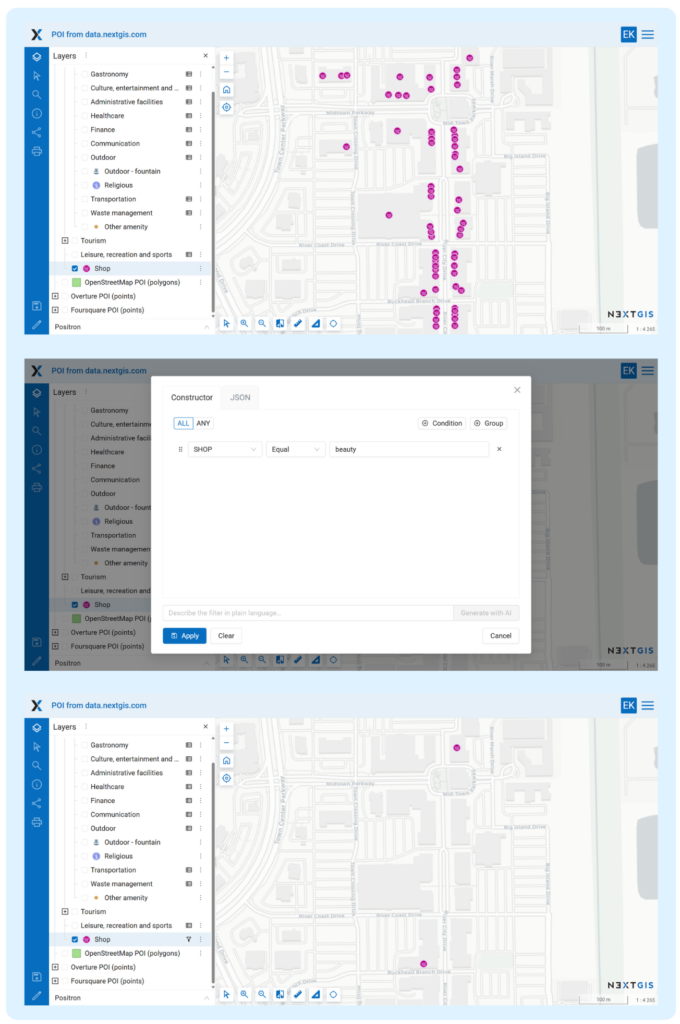
Next, we open the filter again and add a second condition:
SHOP equals jewelry
Then we switch the condition mode to ANY. Now the map displays both furniture shops and jewelry shops.
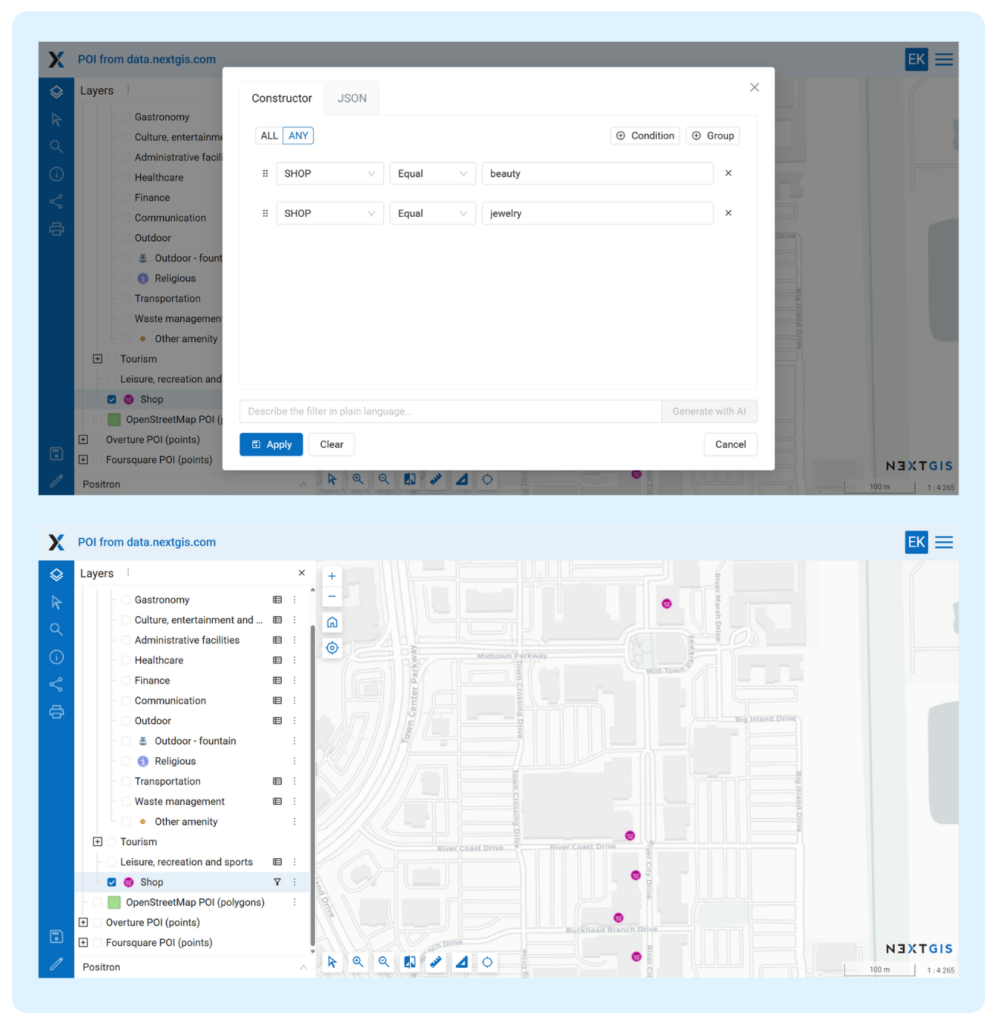
There are two modes for applying filter conditions:
In our example, ALL would not work because one SHOP value cannot be both beauty and jewelry at the same time. For this kind of task, there is also the In list operator, which we’ll cover below.
If you open the attribute table from the layer context menu after applying this filter, the table will show only jewelry and beauty features — exactly the same features that passed the layer filter.
However, the filter inside the attribute table itself will still be empty. It is independent and can be configured separately for more detailed filtering.
Now let’s take a Gastronomy layer and set the following condition:
AMENITY Not equal bar
As a result, the map shows all food-related places except bars.
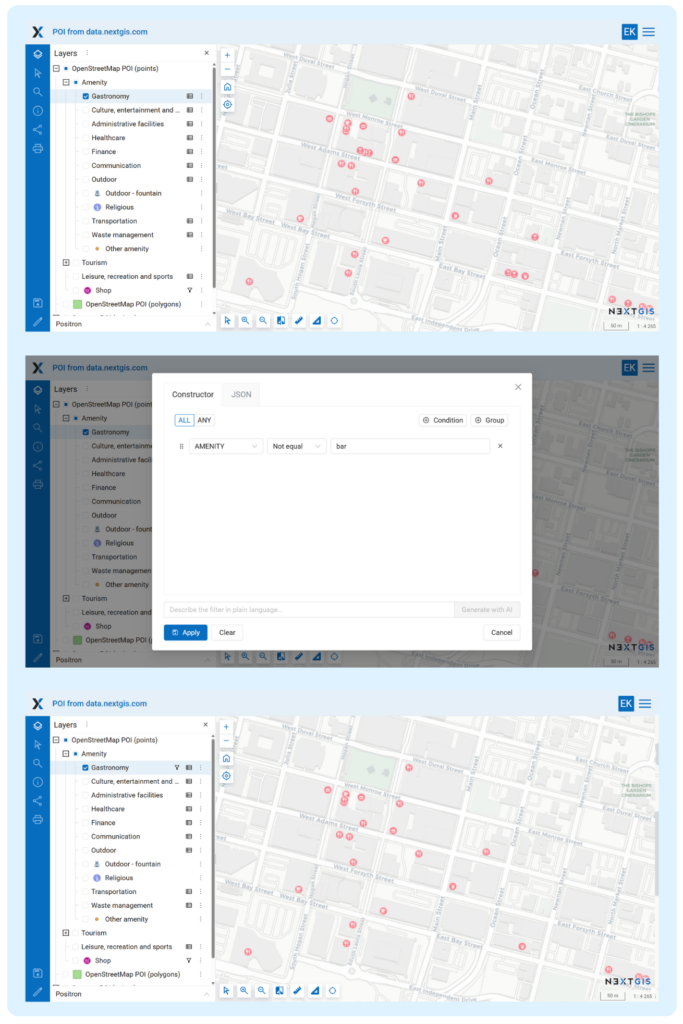
But what if we still want to show one specific bar? In that case, we can adjust the logic:
NAME in list Dos Gatos
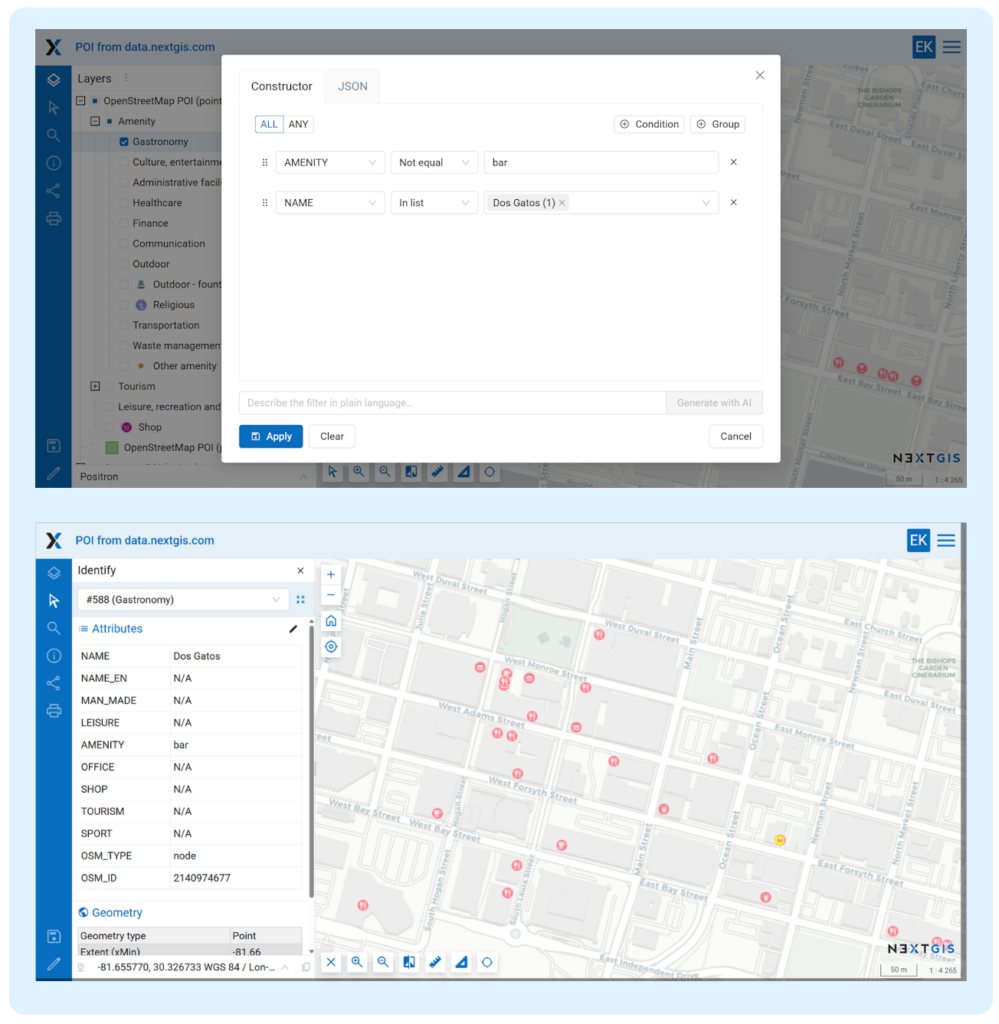
Now the map shows all food-related places except bars, plus one exception: the bar named “Dos Gatos”. If we click the feature on the map, we can confirm that the filter works as intended.
The In list operator works like several “equals” conditions applied to the same field. Instead of listing only one value, such as Dos Gatos, we could add several bar names that should remain visible.
The same logic can also simplify the first example with the Shops layer. Instead of adding two separate conditions for beauty and jewelry, we could use one condition:
SHOP in list beauty, jewelry
The same filters are available when working with an attribute table outside the map, directly in the Web GIS data store. This is especially useful when you need to inspect a large dataset, filter rows, check whether fields are filled in, or find specific records.
We’ll return to attribute table filtering in the section about condition groups.
In the examples above, we used two pairs of operators: equals / does not equal and in list / not in list. NextGIS Web supports four operator pairs in total.
A basic exact match check: whether the field value is equal to the specified value or not.
Allows you to specify several allowed or excluded values at once. This is useful when you need to cover several values without creating many separate conditions.
Filters features based on whether a field has a value.
Null finds features where the field is empty.
Not null finds only features where the field is filled in.
This is especially useful for data quality checks.
The most flexible operator. It works with substrings and special characters, similarly to ILIKE in QGIS. The search is case-insensitive.
Let’s look at this condition:
NAME matches dance
This filter will find all features whose name contains dance anywhere in the string, regardless of case. For example, it would match “A Social Affair Dance Studio”, “National FastDance Association”, or any other feature containing this sequence of letters.
This works because NextGIS Web automatically adds % wildcards before and after the search value behind the scenes. In practice, the query behaves like:
%dance%
This enables substring search without requiring users to type the wildcard characters manually.
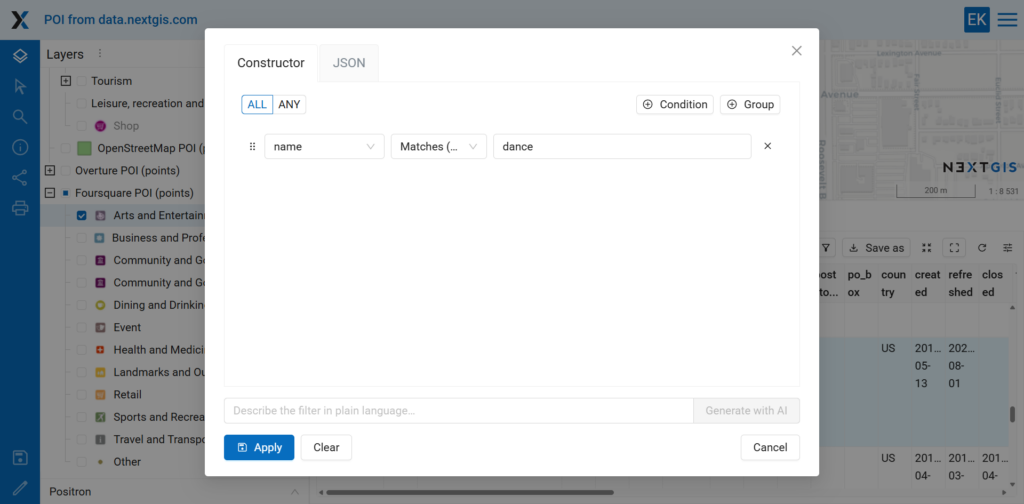
Sometimes you need a more precise search pattern.
For example, suppose the dataset contains features named:
PIER APIER BPIER C
In this case, the condition:
NAME matches pier _
will find all similar records: the word pier, followed by a space, followed by exactly one character.
Here, the _ character means exactly one arbitrary character. This is useful when the structure of the value is predictable, but part of it varies.
The filter will match both letters and numbers, for example:
PIER APIER 1PIER Q
But it will not match:
PIER 10PIER NORTH
because there is more than one character after the space.
When the number of characters after the space is unknown, you can return to the default substring search pattern. For example:
%PIER%
This would match many variations, including:
PIER APIER 10PIER NORTHNORTH PIER
and other similar names.
A single list of conditions with ALL or ANY mode works well for simple cases. But sometimes the filtering logic is more complex. This is where condition groups become useful.
A group is a separate block of conditions with its own ALL or ANY mode. Groups themselves are also combined using a common ALL or ANY mode. This makes it possible to build compound filters with nested logic.
Let’s say we need to find all large electronics stores or supermarkets, but only those that are open 24/7 and have parking.
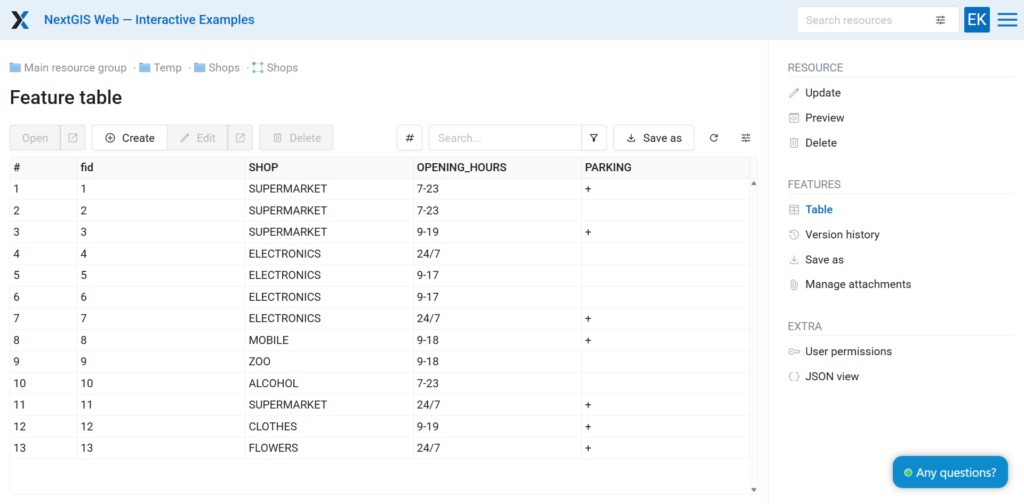
Without condition groups, this filter would be difficult to express correctly: conditions describing the type of shop and conditions describing its operating hours and parking availability would be mixed together.
With groups, the logic is clear.
Group 1 — mode: ANY
SHOP equal electronicsSHOP equal supermarket
Group 2 — mode: ALL
OPENING_HOURS equal 24/7PARKING is not null
Both groups are combined using ALL. This means that a feature will be included only if it belongs to one of the categories from the first group and also satisfies both conditions from the second group.
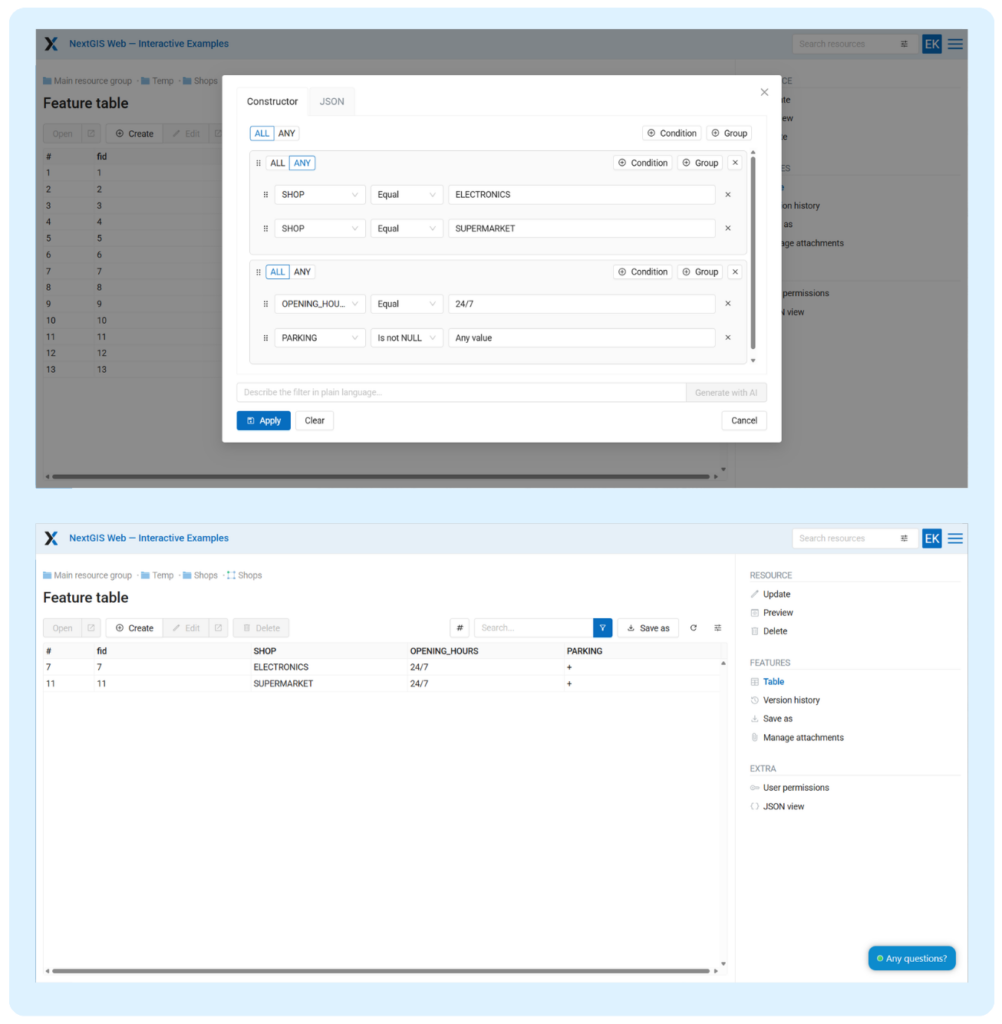
This approach is especially useful when working with complex datasets. It lets you clearly separate “or” logic inside one semantic group from “and” logic between different groups.
Filters in NextGIS Web are easy to learn and useful in everyday work. They help you quickly find features, visually inspect data, check attribute completeness, and prepare selections before export or further analysis.
Try them in your own Web GIS project.
Want to try filters with your own data? You can:


