
Collaborative editing is one of the most vulnerable points of working with geodata. As the project lasts and evolves and the number of editors increases, so does the risk of accidentally deleting vital data or making another drastic mistake.
The costs of not being able to undo the edits could be disastrous. Besides, it’s very tricky to control the project when you don’t know who and when modifies the data.
To make working with vector data safer more and controllable we added versioning to NextGIS Web.
Some typical issues while working in a team are:
Version control solves these problems by allowing to record the edit history and safely revert to one of the previous states of the data.
You can enable feature versioning for any vector layer. When it’s on, all edits to the layer are recorded indefinitely. In most cases, versioning is already enabled by default.
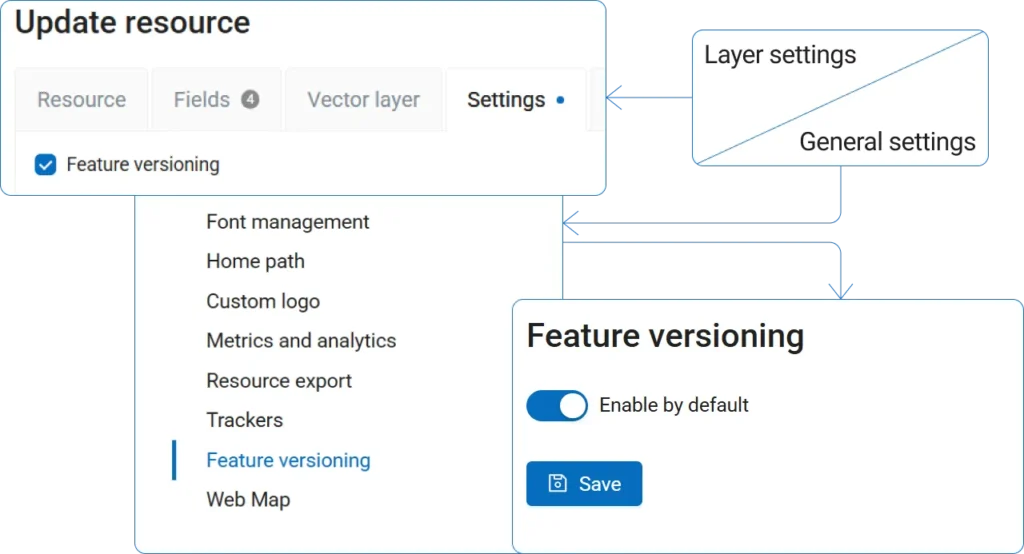
The version history records an entry if anyone:
Each entry has information about the type of edits, their author, date and time.
It doesn’t matter where you edit the data: on a Web Map, via feature table interface in NextGIS Web, in a mobile or desktop app, or using API. Regardless of the process, the edits are recorded and stored.
You can view the entire history of the vector layer directly from the Web interface by clicking “Version history”..
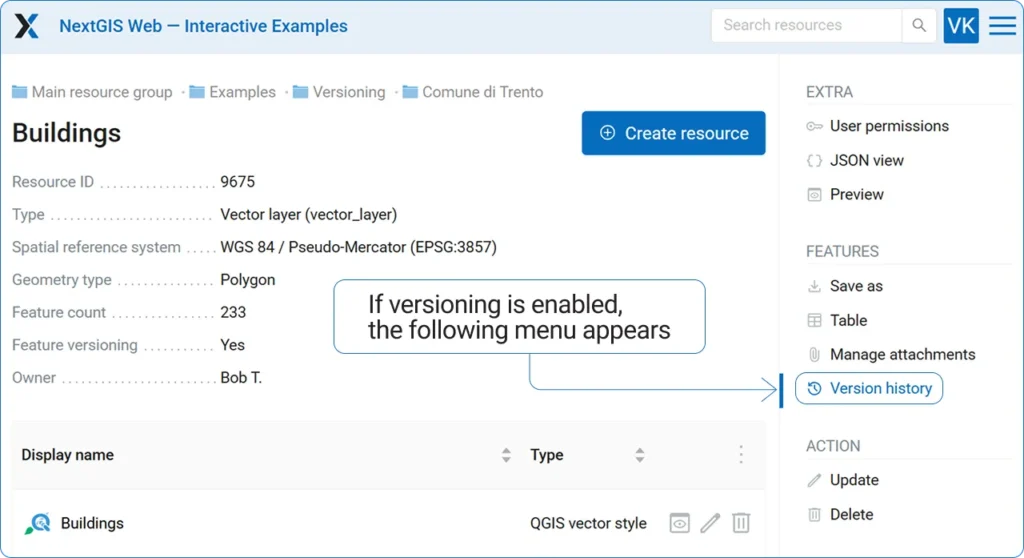
It opens a table containing the version information: date, author and edit details. The entries can be filtered by date.
But it’s more than just a log or description. Each version is a snapshot of the layer at the time. You can revert to any of these states. The undone edits are not lost, however. All the history entries are preserved, and reverting to one of the versions just creates a new entry that documents restoring the layer to the chosen state. So if you need to undo the reverting, you can do that just as simply.
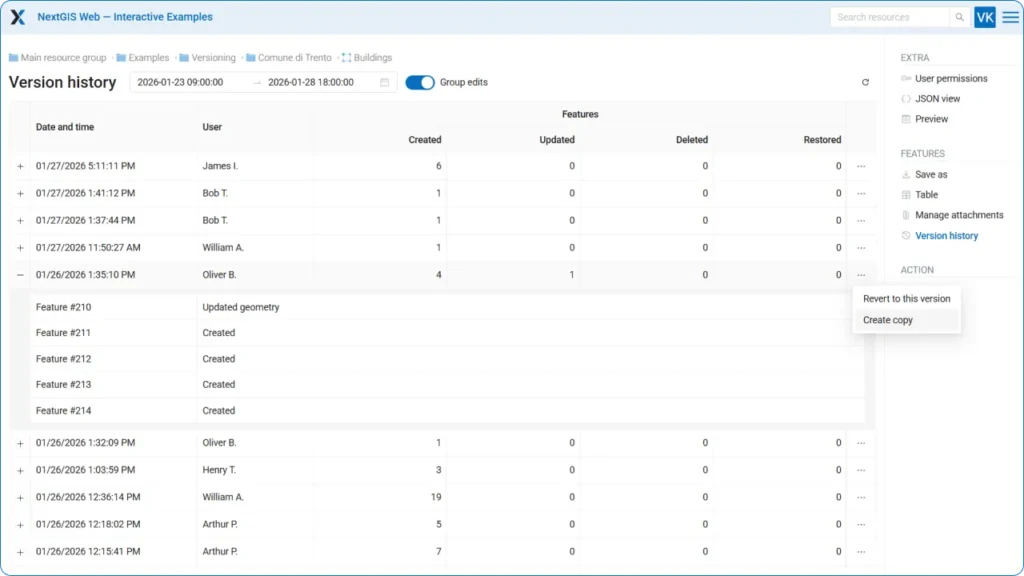
Another option is to save a particular state of the layer as a new dataset. In GIT terms we’d call it “branching”. This way you can get a snapshot of the layer at a given moment to examine it in minute details or split data operations between branches.
NextGIS Web API also provides full access to version history. You can use it to automate customized reports or to integrate the data into external analysis frameworks.
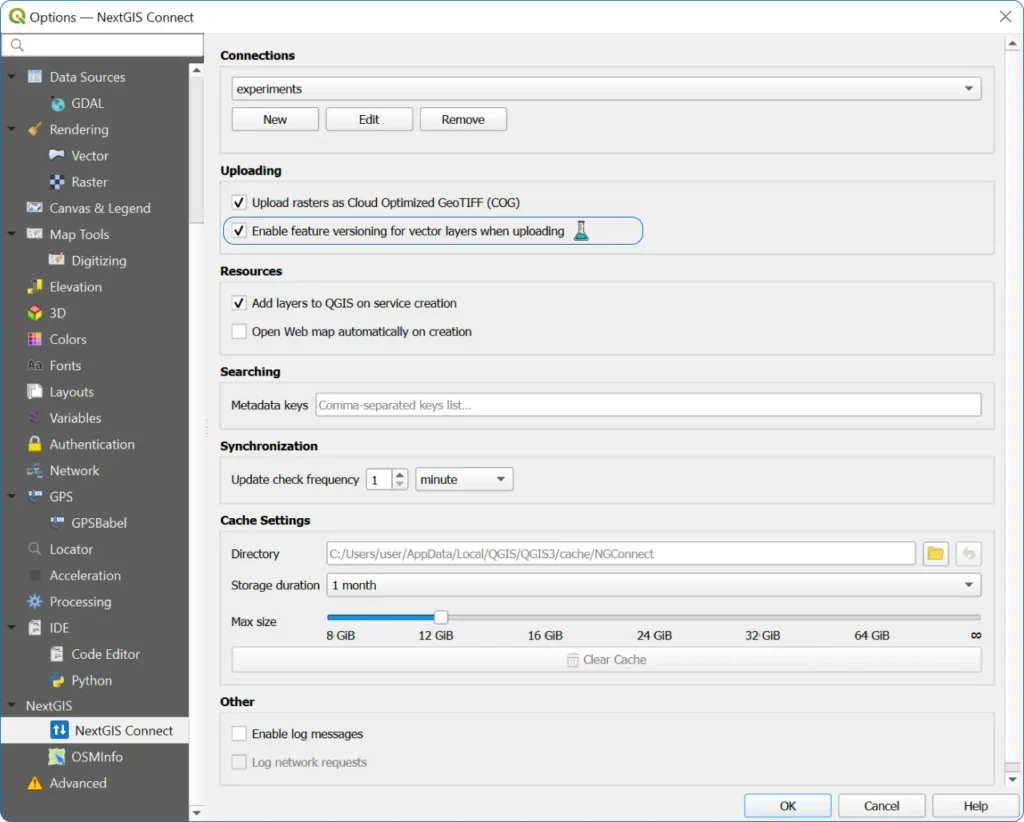
Versioning allowed us to implement a comprehensive system for managing the data stored in the NextGIS Web cloud from QGIS. Desktop app can query the server at any time to check for updates and instead of re-loading the entire, potentially huge, dataset, to get just the information about the changes.
On top of making data transfer much faster, it assures a safe conflict resolution and keeps all the applications using the data “aware” of its current state. It even allows for safe offline work. After the network connection is restored, all devices methodically “compare notes” and load the changes. No more need to upload the entire dataset to cross-check the edits and synchronize everything manually.
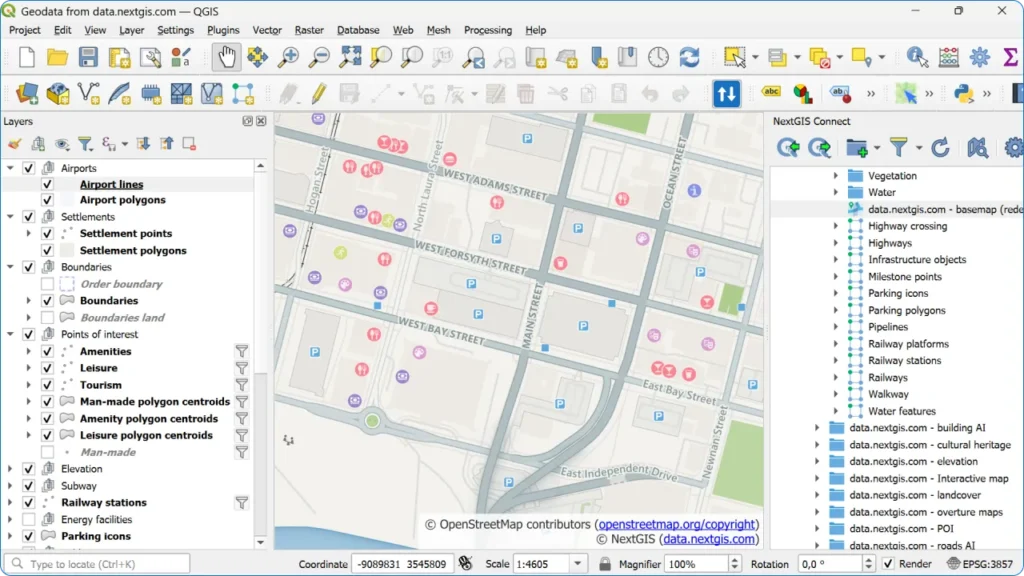
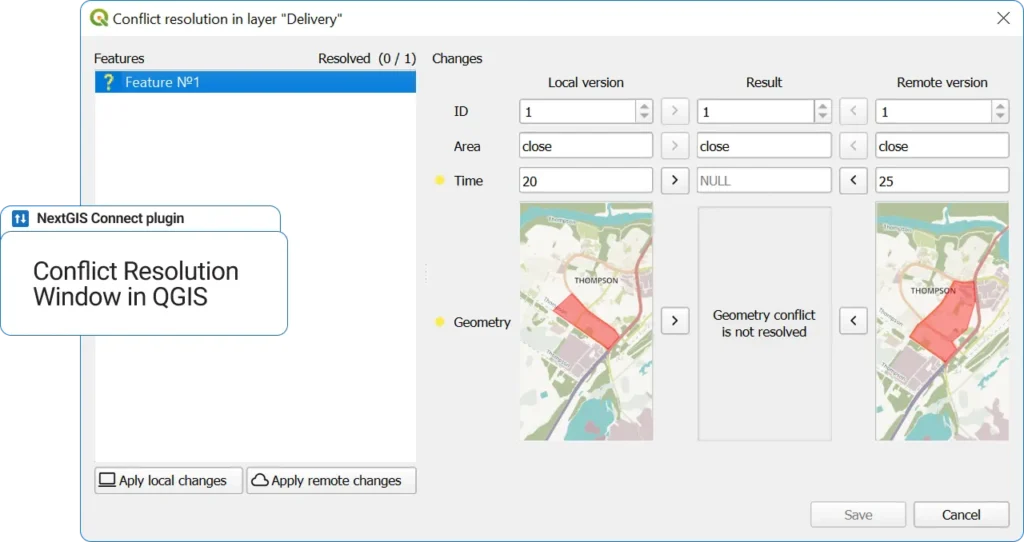
Thanks to versioning, you can work in big teams with multiple users simultaneously editing the same datasets from a number of QGIS instances and viewing the edits made by their colleagues in real time.
If several people make contradicting changes to the same feature, a dialog pops up. The editors can resolve the conflict by picking a version.
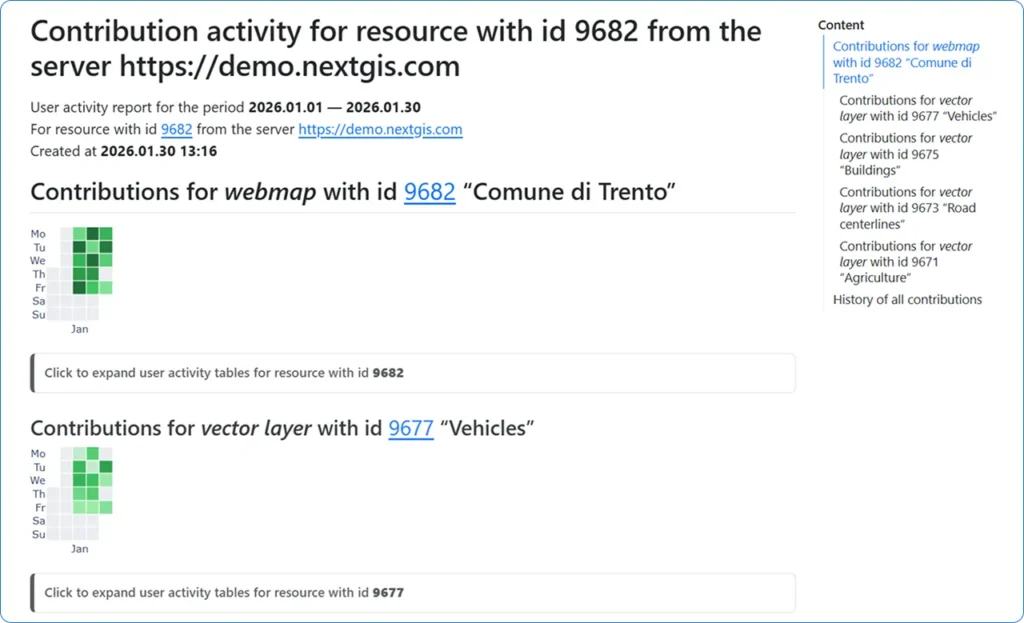
All the changes made on all the devices are of course visible on the version history page in NextGIS Web, ensuring full control over the process.
We are constantly introducing new features for version control, some of them are added to NextGIS Toolbox, our online geoprocessing platform. You can already try out two handy tools for working with version history.
This tool generates a detailed report of editor activity for the selected time period. Input the ID of a layer, resource group or Web Map. The output HTML file describes the changes of the data overall as well as split by individual layers and editors. It’s an easy way to see who contributed what to your project.
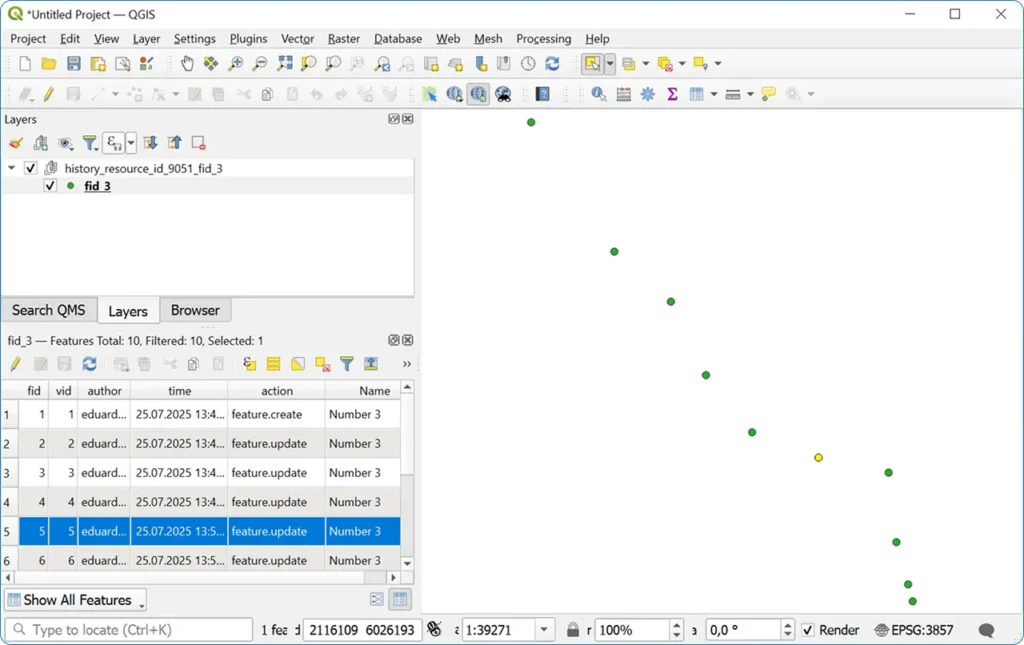
This tool provides a deeper analysis of changes made to a particular feature. It may be useful if you have rapidly-changing features in your layer, for instance, monitor a moving object or an affected area with unstable boundaries. The tool creates a GeoPackage file displaying all the states of the feature for the selected time period.
Versioning is crucial if you have multiple people working on the same datasets:
Overall, having a history of all the changes to fall back to is good even for solo projects.
Start storing it in NextGIS Web instead of scattered files and DIY attempts at database servers. You can start your own Web GIS:


