
QGIS 4.0 “Norrköping” was released on March 6, 2026 – the first major version jump in roughly eight years, since QGIS 3.0 “Girona” in 2018. For most users, it looks nearly identical. For plugin developers, it arrives with two distinct sets of requirements landing at the same time.
This article walks through both, and explains where QGIS DevTools fits in.
QGIS is built on top of a software framework called Qt (pronounced “cute”), which handles everything from the window layout and buttons to how the application talks to Python. QGIS has been running on Qt version 5 since 2016. QGIS 4 moves to Qt version 6.
Versions 5 and 6 are not fully compatible. Plugins that were written for Qt5 are highly unlikely to run in QGIS 4. This is the headline change for plugin developers – and old news for many.
The QGIS project has done a lot to soften the transition. The QGIS 3 LTR release was extended to give developers extra time. An official migration guide and a conversion script – pyqt5_to_pyqt6.py – are available to handle the bulk of the mechanical updates automatically. The next Long Term Release, QGIS 4.2, is scheduled for October 2026. That is the practical window: the version most organisations and institutions will adopt for production use.
If you open a Python plugin that was written for QGIS 3, you’ll typically see lines at the top of each file that look something like this:
from PyQt5.QtCore import Qt, QTimer

from PyQt5.QtWidgets import QAction, QDialog
These lines load the tools your plugin needs from Qt5. In Qt6, they need to reference Qt6 instead – or better yet, use a version-neutral path that QGIS provides:
from qgis.PyQt.QtCore import Qt, QTimer

from qgis.PyQt.QtWidgets import QDialog
The migration script rewrites most of these automatically. Run it, and it will scan your plugin directory and update the import lines it recognises.
A few other things change beyond the imports:
Named option values. Qt uses something called “enums” – essentially, named values that represent options. Think of them like named settings: instead of passing the number 1 to mean “align left,” you write Qt.AlignLeft. In Qt6, these need to be written more specifically: Qt.AlignmentFlag.AlignLeft. The migration script catches many of these, but not all, especially when they appear in more complex or conditional code.
Moved components. Some Qt tools moved to different locations between versions. QAction, for example, moved from QtWidgets to QtGui. These are straightforward to fix once you know about them, but they surface as errors only when you actually run that part of the plugin.
Older QGIS API patterns. QGIS 4 currently keeps compatibility with some older patterns from the QGIS 2.x era, but this is not guaranteed to last throughout the 4.x lifecycle. Plugins relying on the old Processing API in particular should be updated.
The script is a good starting point. It handles the mechanical, predictable changes. What it cannot do is verify that your plugin actually behaves correctly after those changes. The QGIS project’s own migration guide puts it plainly: test your plugin thoroughly. That is easy advice to give. In practice, it means you need to exercise every code path in a real, running QGIS 4 session – and when something goes wrong, you need a way to understand what happened.
Separately from the Qt6 migration, the QGIS Plugin Repository introduced a security scanning system earlier this year. This one affects anyone who publishes a plugin, regardless of whether they’ve migrated to Qt6 yet.
QGIS plugins run with Python and with the same permissions as the user running QGIS on their computer. That is a lot of access. Until now, the repository has operated largely on trust: once a plugin was approved, it could be republished freely with relatively little scrutiny. The new system changes that in two ways.
First, trust now attaches to the person, not the plugin. Previously, trust was granted to a plugin and stayed there regardless of what was uploaded later. Now the repository tracks authors – if a developer is found to be acting in bad faith, their entire portfolio of plugins can be addressed at once.
Second, every plugin now goes through automated security scanning before it can be published.
The scanning uses a tool called Bearer. It looks for the kinds of problems that are easy to introduce accidentally and hard to spot by eye:
There is also a separate, non-blocking layer of checks – a tool called flake8 – that flags style and quality issues like unused imports, inconsistent formatting, and similar things. These do not block publication; they’re advisory.
Every plugin in the repository now displays a badge. A red badge means the scanner found issues that need attention. A green badge means the plugin passed all the blocking checks. A small “i” icon means there are non-blocking advisories to look at.
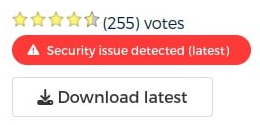
If you are the owner of a plugin and it has a red badge, you can log in at plugins.qgis.org and see the full detail report for each flagged item.
For plugins being uploaded fresh, passing the security scan is required. Existing plugins that are already published are not being removed – they get the badge, and developers are expected to address the flagged issues in their next update.
There are known cases where a flagged item is actually intentional. A plugin that needs to embed an API key for a legitimate service, for example, will be flagged – but developers can mark those specific lines with an override flag in their code to tell the scanner that the issue has been considered and accepted. The goal is not automatic enforcement but conscious review: the QGIS project wants developers to have looked at each flagged issue and made a deliberate decision about it.
The team has acknowledged some teething problems. Some standard Python libraries – the XML parser, certain hashing functions – were triggering false positives, and the issue count reported in the badge didn’t always match the number of items listed in the detail report. These are being fixed. If you believe something is being flagged incorrectly, you can file an issue at github.com/qgis/QGIS-Plugins-Website.
For now, the badges are only visible on the plugins website. They do not yet appear inside QGIS Desktop’s own plugin manager – though that is on the roadmap.
The Qt6 migration and the security scanner are different in nature, but they share a key requirement: at some point, you have to run your plugin and check that it actually works.
The migration script rewrites your import lines. Static analysis tools – think of them as a spell-checker for code – can flag known patterns. But neither will tell you whether a variable contains the value you expect at a critical point, or why the QGIS interface freezes when a user triggers a particular action. The same is true after fixing security flags: code that passes the scanner still needs to work correctly in practice.
For most of QGIS plugin development history, the only tool available for this was printing messages to the console and hoping – a slow and frustrating process, especially in complex plugins. There was no clean way to attach a proper debugger to a running QGIS session.
That is the gap QGIS DevTools was built to close.
QGIS DevTools is a QGIS plugin – free, open-source under GPL-2.0, available from the standard QGIS Plugin Repository – that starts a debugging server inside the running QGIS application and connects it to VS Code. It is already compatible with Qt6 and was updated to version 1.3.2 just days before QGIS 4.0 launched.
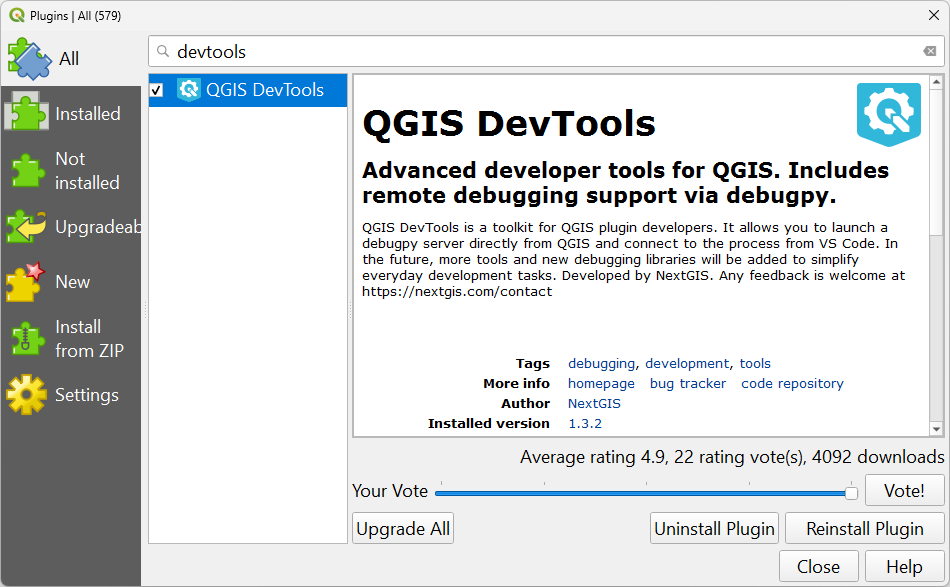
Once the connection is active, you can interact with your plugin through QGIS normally, but now you have full visibility into what is happening inside the code as it runs.
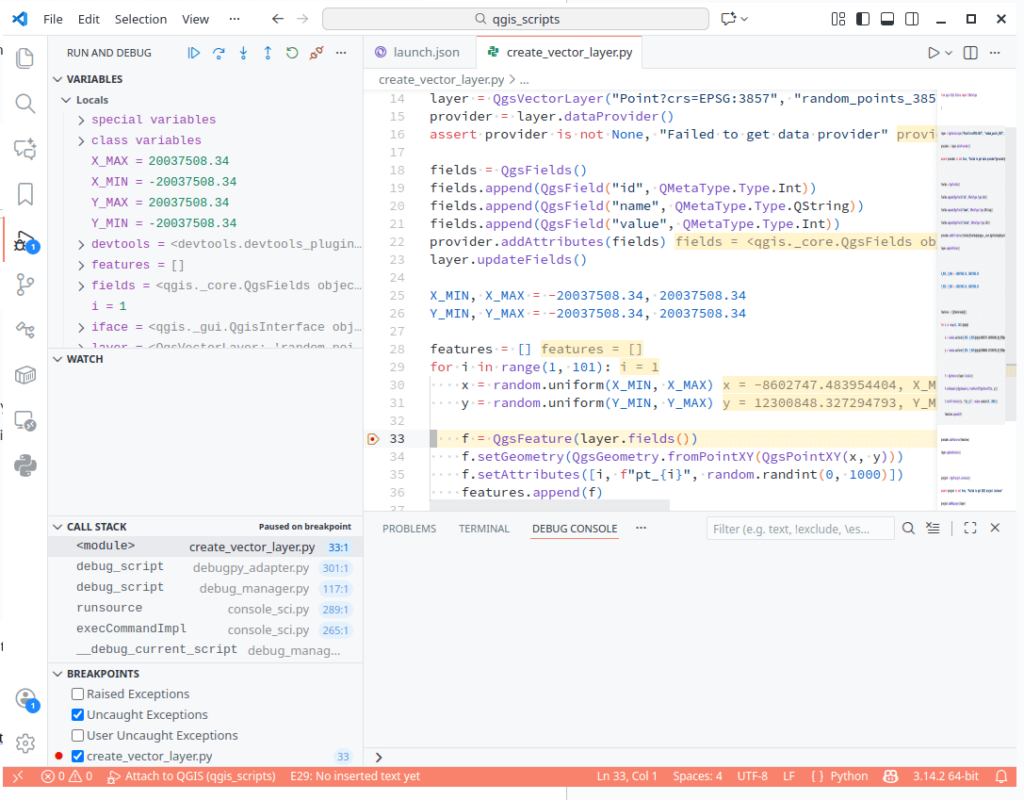
Breakpoints. You place a marker on any line in your plugin’s code. When execution reaches that line – triggered by whatever action you perform in QGIS – it pauses. The interface freezes (intentionally), and VS Code shows you exactly where you are in the code.
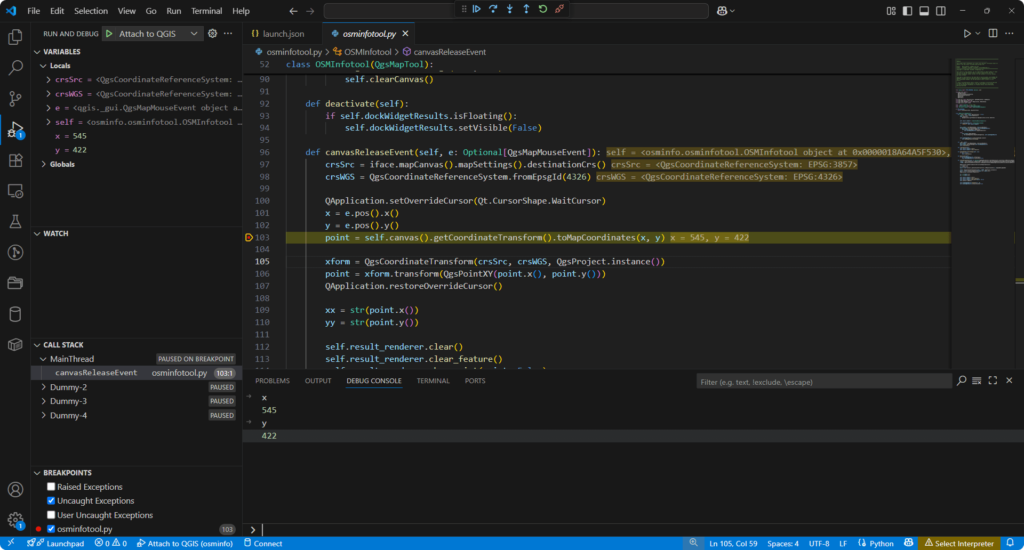
Variable inspection. At the moment of pause, every variable that is currently in use is visible in the Variables panel in VS Code. For Qt6 migration work, this is particularly valuable: you can verify that the values you’re working with are what Qt6 actually produces, rather than what you assumed the migration script would give you. For security fixes, you can confirm that sensitive values are being handled the way you intended.
The debug console. While paused, you can type expressions and evaluate them against the live session. Ask for the coordinates of the last mouse click, inspect a geometry object, check the state of any variable – all without modifying your code.
Step-through. Instead of jumping to the next breakpoint, you can advance one line at a time and watch exactly how execution flows through a section of code.
Multiple QGIS instances. DevTools supports running several QGIS instances simultaneously by configuring a range of port numbers instead of a single one. This is useful when you want to compare behavior between a QGIS 3.x build and a QGIS 4 build side by side.
The plugin also works with the QGIS Python Console script editor – there’s a dedicated Debug Script button that starts the same debugging session for standalone scripts.
Full instructions are in the documentation. The short version:
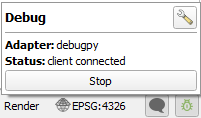
When the session is live, the DevTools icon in the QGIS status bar turns green and shows “client connected.”
Putting both the Qt6 migration and the security scanner together, here is a practical sequence:
Steps 6–9 are what the automated tools cannot do for you, and where the time investment in a proper debugging setup pays off.
Does QGIS DevTools work with QGIS 4.0? Yes. The plugin is Qt6 compatible and was updated just before QGIS 4.0 launched.
Does it work with QGIS 3.x? Yes. You can start using DevTools today in QGIS 3.x to get comfortable with the workflow before you need it for migration testing.
I didn’t write my plugin myself – I used an AI assistant or adapted someone else’s code. Does this still apply to me? Yes, and arguably it matters even more. Automated tools are good at making changes that appear syntactically correct. The only way to know whether the result actually runs correctly is to test it in a real session. DevTools makes that testing practical.
Does using DevTools change my plugin code in any way? No. DevTools connects to the running QGIS application externally. Your plugin is untouched.
Which IDEs are supported? VS Code and Visual Studio, via debugpy. Support for additional environments – PyCharm, Eclipse – is planned.
My plugin has a red security badge. What should I do? Log in at plugins.qgis.org and open the detail report for your plugin. Work through the flagged items one at a time. For items that are genuinely intentional features (an embedded API key that is meant to be there, for example), you can add an override marker in your code. The QGIS team’s guidance is: visit each flagged issue, decide whether to fix it or accept it, and document that decision in the code. Full documentation on the scanning rules is at plugins.qgis.org/docs/security-scanning.
Is DevTools free? Yes. Open-source under GPL-2.0, free to install from the Plugin Repository. NextGIS also offers commercial support and custom development if you need it.


